
Continue for VS Code
Dieser Inhalt ist für v1.1.0. Geh zur neuesten Version, um die aktuellste Dokumentation zu bekommen.
Dieser Inhalt ist noch nicht in deiner Sprache verfügbar.
Continue for AI Engineer is a custom version of the Continue extension for Visual Studio Code. It brings chat, inline edits, autocomplete, and coding agents into the editor so you can stay in the same workflow while working with AI models.
Key Features
Section titled “Key Features”- Chat interface for questions, code explanations, and development assistance
- Inline edits for targeted code changes without leaving the file
- Autocomplete for low-latency code suggestions while you type
- Coding agents for multi-step tasks such as reading files, running commands, and applying changes
Installation
Section titled “Installation”- Download the VSIX from Continue for VS Code.
- In VS Code, open Extensions, open the three-dot menu, and choose Install from VSIX.
- Select the downloaded plugin file and reload VS Code.
Config File Setup
Section titled “Config File Setup”After the first installation, open the AI Engineer Continue plugin and choose Local config. This opens an empty config.yaml file that you can update with your model, base URL, and API key details.
- Choose a model ID from Available Models:
model: gpt-oss-120b- Set the base URL:
apiBase: https://llm-server.llmhub.t-systems.net/v2/coding- Generate an API key in LLM Serving API Keys and reference it from a Continue secret:
apiKey: ${{ secrets.OPENAI_API_KEY }}See Using an environment variable below for how to provide the value.
- Assign one or more roles to the model, such as
chat,edit,apply,autocomplete, orembed:
roles: - chatExample config.yaml
Section titled “Example config.yaml”name: Local Configversion: 1.0.0schema: v1models: - name: gpt-4.1 model: gpt-4.1 provider: openai apiBase: https://llm-server.llmhub.t-systems.net/v2/coding apiKey: ${{ secrets.OPENAI_API_KEY }} roles: - chat - name: Qwen3-30B-A3B-FP8 model: Qwen3-30B-A3B-FP8 provider: openai apiBase: https://llm-server.llmhub.t-systems.net/v2/coding apiKey: ${{ secrets.OPENAI_API_KEY }} roles: - chat - edit - applyOnce the config is saved, you can start a chat and use Continue in VS Code.
Using an environment variable
Section titled “Using an environment variable”The ${{ secrets.OPENAI_API_KEY }} reference resolves the value at runtime instead of pinning the API key into your config.yaml. Continue searches the following sources in order:
- A
.envfile in your workspace root .continue/.envin your workspace~/.continue/.envin your home directory- The process environment
Create ~/.continue/.env with your key:
OPENAI_API_KEY=gen-************************************************Restart VS Code. Continue will resolve ${{ secrets.OPENAI_API_KEY }} from the .env file, and you only set the value once for every model in your config.yaml.
Updating
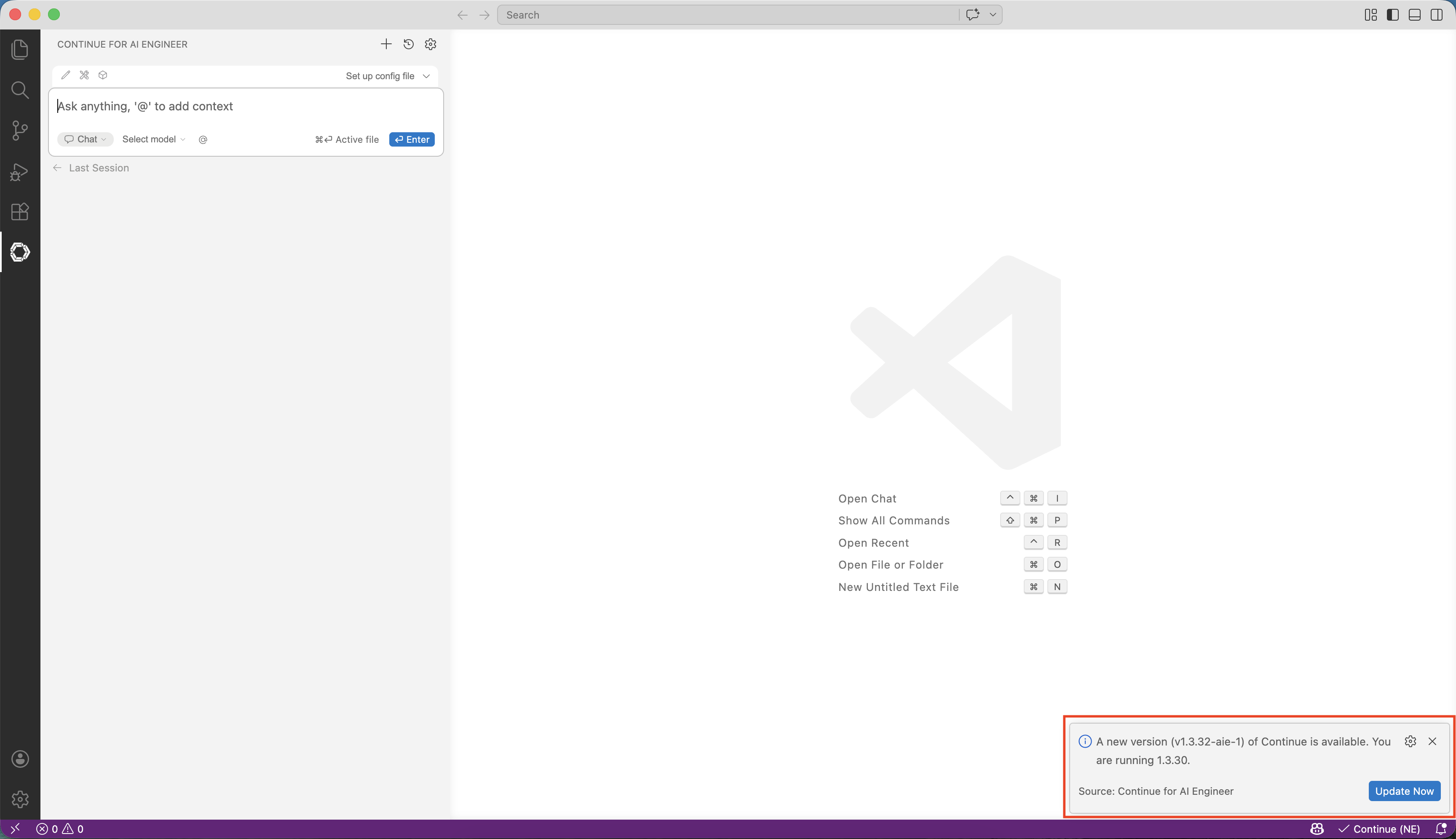
Section titled “Updating”After setup, the plugin can download newly published versions automatically. When you start or reload VS Code and an update is available, a popup appears.
- Click Update Now to download the latest version.
- After the download completes, click Reload Window.
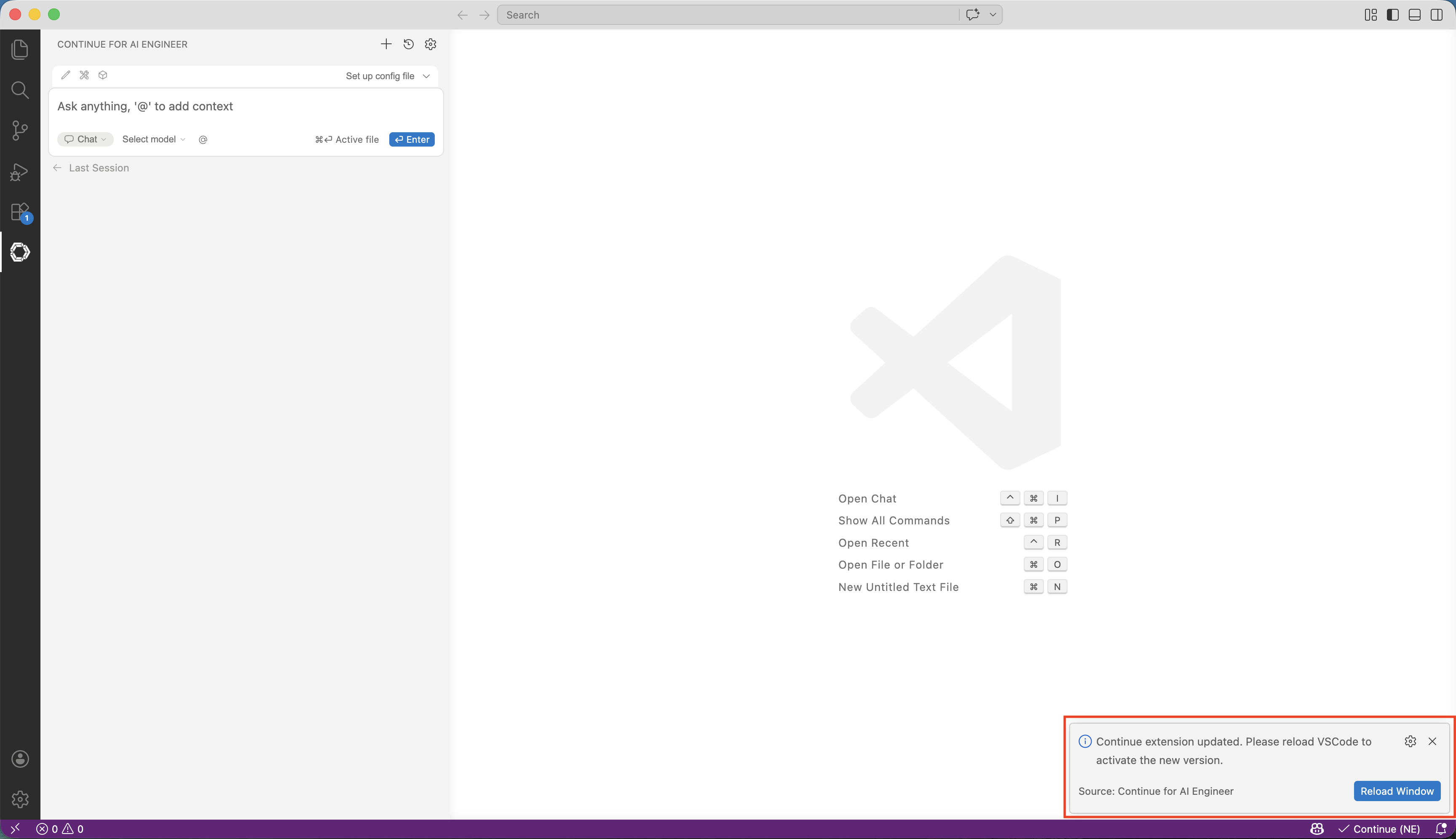
After Visual Studio Code restarts, the latest Continue version is ready to use.